Guide: Assuring you get all the scripts (correctly)
2 min
If the client is not sure what scripts are running on their website, you can scan their website with a chrome extension called Tag Explorer.
A quick step by step guide
- Install chrome extension
- Visit client website
- If the client is currently using a cookie solution to handle their scripts, make sure you have accepted all cookies.
- To reset your cookie settings on a single website, click the lock to the left of the URL.
- Second from the bottom, click Cookies
- The pop up window will show you cookies in use. Click on each of them and click remove
- Once all cookies have been removed, reload the website
- Navigate to your Chrom extensions and click the Tag Explorer Icon as shown below:
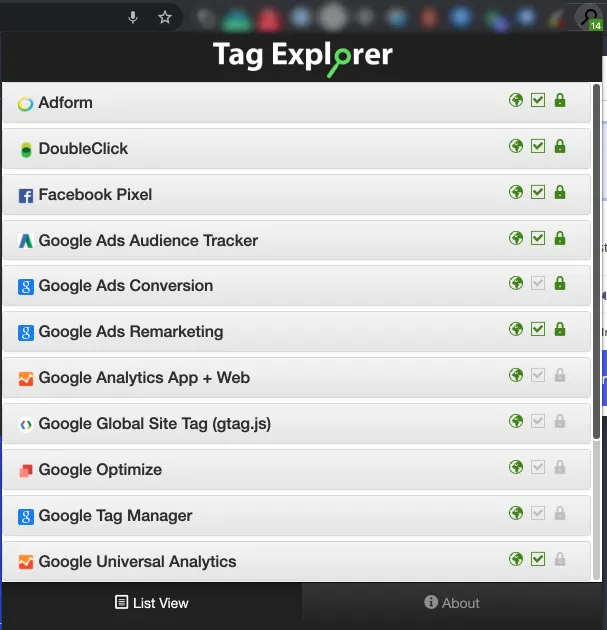
Tag Explorer showing full list of scripts on a website
Additional information
If you need additional information on a tag, Tag Explorer isolates the individual tag, allowing you to easily verify things like a clients Universal Analytics tag or Facebook Pixel ID